Katalon Studio: A multipurpose tool
- mohdmyyusuf
- Apr 24, 2021
- 3 min read

Updated: May 16, 2021
Introduction:
Katalon Studio is a complete web and mobile test automation tool. Katalon studio extends the capabilities of Selenium and Appium. This is useful in API testing also, it is very useful in testing of APIs and provides a good report also which is missing in other tools. The strength of this tool is to create quick automation tests it also allows to record and playback to do quick testing. Katalon Studio is helpful in cross bowser testing it is powerful enough to run the same test on different browsers.
Katalon studio can be integrated with multiple tools like JIRA, qTest, Git and Jenkins etc. It is very easy to learn so even non-technical people can use it easily. Manual testers with a very small effort can start using it and do the automation testing. The learning curve is very short so companies are adopting it very quickly.
How to install Katalon Studio:
To install the Katalon studio, we will first check the system requirements for it. If we talk about the supported operating systems, Katalon Studio Supports Winows7, Windows8 Win10, macOS 10.11+. Minimum CPU requirement is 1GH or faster 32-bit(x86) or 64-bit (x64) processor. Minimum 1GB RAM is required to run this tool and at least 1GB hard drive space is required. So we can see that we don’t need a super computer to run Katalon studio, it can be used on any ordinary system easily.
So let's go to https://www.katalon.com/download/ and download for your operating system. The zipped folder with name "Katalon_Studio_Windows_64-7.9.1" is downloaded(see highlighted in the image below)

Extract the folder and see the application "Katalon" in the folder and double click it(See the image below)

The Katalon Studio is launched as follows(I will explain the complete GUI of the tool in another section later):

Automation Testing using Katalon Studio:
We can perform automation testing on a web application in three modes
Record and Replay
Manual Mode
Script mode
We are going to discuss the options(parts of Ui) which are going to be used in different modes of testing. First of all we will discuss the option "Spy" which is used to trace the webelements on the page. To locate the webelements go to Actions > Spy > Spy Web click Spy Web option

Object Spy window is opened as follows(in the image below) and then pass the url in URL field on the top of the window then select the browser from the from the list named "Start".

Now click Start option. Browser will be opened with the url passed in the object Spy window.
Click any element on the webpage opened and notice that it is encircled in red boxes.

To locate the element click ALT + ~(tilde) key and the object(page element) is enlisted in captured objects list in the Object Spy window of the Katalon studio(see the image below)

Test Suite:
Test cases are grouped in some categories according to the type of test cases for example the login test cases are grouped as login functionality test cases. So test suite is a logical collection of test cases where some test cases are clubbed together which are interlinked with each other, see the image below:
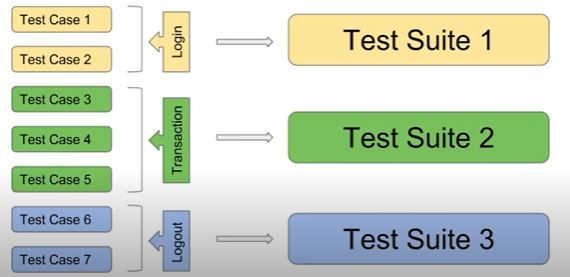
To create a test suite in Katalon Studio, click New button or File > New > Test Suite and give it a name of your choicand Description(optional) and click OK button. Test suite is shown under Test Suites folder. Now add test cases to the test suite. Click the add button in the red square and select the test cases to be added to the test suite.

The test cases will be added to the test suite which can be executed from here. As soon as multiple test cases are added to the test suite, user is able to check checkbox "Run" which selects all test cases to be executed together. If we want some particular test cases to be executed (not all) uncheck the "Run" checkbox and select those which you want to execute then only those are executed which are selected. On clicking Run button only selected test cases are executed.
Comments